
Pi-Star Hotspot: US Hemet Hangout Setup Guide
Updated: July 18, 2026
This guide is for a regular Pi-Star hotspot being used with the LDARC / Hemet digital voice system. It is intentionally focused on two common paths:
- C4FM / Yaesu System Fusion first: connect to YSF-59073 US HEMET HANGOUT.
- DMR second: connect to XLX618 Module H through Pi-Star DMRGateway.
For most Yaesu Fusion users, the C4FM / YSF setup is the cleanest way to get on US Hemet Hangout. Use DMR only if you are operating with a DMR radio or intentionally setting up the DMR side of the hotspot.
Quick links: Before You Start | Wi-Fi | Basic Configuration | C4FM / YSF | DMR / XLX618 | Quick Reference | Troubleshooting
Before You Start
Have these ready before you begin:
- Your Wi-Fi network name and password.
- Your amateur radio callsign.
- Your DMR ID from RadioID.net, even if you mainly plan to use C4FM.
- The hotspot transmit / receive frequency you plan to use.
- Your hotspot modem type, if you know it.
- A Fusion / C4FM radio channel programmed for the hotspot frequency.
- A DMR radio channel programmed for the hotspot frequency, color code, time slot, and talkgroup if you plan to use DMR.
Use a simplex hotspot frequency that is legal and appropriate for your band plan and equipment. Avoid repeater input and output frequencies unless you have coordinated permission.
Part 1: Connect Pi-Star to Wi-Fi
Option A: Wi-Fi Was Already Entered During Imaging
- Power on the hotspot.
- Wait about five minutes for the hotspot to boot.
- On a computer or phone connected to the same network, open the Pi-Star local hostname in a browser.
- If that does not work, check your router client list for the hotspot IP address and open that address in a browser.
- Log in to the Pi-Star dashboard, then continue to basic configuration.
Option B: Wi-Fi Was Not Entered During Imaging
- Power on the hotspot and wait about five minutes.
- On your computer or phone, open the Wi-Fi network list.
- Connect to the setup network named
Pi-Star-Setup. - Open the Pi-Star local hostname in a browser.
- Open the wireless configuration page and add your Wi-Fi network.
- Save the Wi-Fi profile.
- Wait a few minutes for Pi-Star to leave setup mode and join your normal network.
- Reconnect your computer or phone to your normal Wi-Fi network.
- Open the Pi-Star local hostname or the hotspot IP address.
Part 2: Basic Pi-Star Configuration
- In the Pi-Star dashboard, open Configuration.
- In Control Software, use MMDVMHost for a normal hotspot.
- In MMDVMHost Configuration, turn on the mode you are setting up first. For C4FM, turn on YSF Mode. For DMR, turn on DMR Mode.
- Click Apply Changes and wait for the dashboard to reload.
- In General Configuration, enter or confirm your callsign, DMR ID, radio frequency, latitude / longitude if used, town, country, URL, radio / modem type, node type, and time zone.
- Click Apply Changes again after changing settings.
Important: each time you change Pi-Star settings, click Apply Changes and let the dashboard finish reloading. A setting may appear on screen before it is actually active.
Part 3: C4FM First: Connect to YSF-59073
YSF-59073 is the preferred Pi-Star path for a Yaesu Fusion / C4FM radio.
| Item | Value |
| Reflector number | YSF-59073 |
| Pi-Star list name | YSF59073 – US-HEMET HANGOUT |
| DTMF room command | #59073 |
| Operating mode | DN mode on the Fusion radio |
- Open Configuration.
- In MMDVMHost Configuration, turn YSF Mode on.
- Click Apply Changes.
- After the dashboard reloads, return to Configuration.
- Find Yaesu System Fusion Configuration.
- Set YSF Startup Host to YSF59073 – US-HEMET HANGOUT. If the display name varies, look for 59073 or US-HEMET HANGOUT.
- Leave UPPERCASE Hostfiles enabled unless you have a specific reason to change it.
- Click Apply Changes.
- Return to the main dashboard.
- Confirm that YSF is active and that the network/status area shows US HEMET HANGOUT or YSF-59073.
Using US Hemet Hangout From a Fusion Radio
- Select the hotspot frequency on your Fusion radio.
- Use DN mode, not VW mode, when working linked digital systems.
- Key briefly and watch the Pi-Star dashboard for activity.
- Make a short test call: This is [your callsign] testing Pi-Star into US Hemet Hangout YSF-59073.
Part 4: DMR Second: Connect to XLX618 Module H
Use this section if you are operating with a DMR radio. In Pi-Star, XLX DMR access is normally handled through DMRGateway. The hotspot is configured for XLX618 and Module H, and the DMR radio uses Talkgroup 6 to route traffic to the selected XLX reflector.
- Open Configuration.
- In MMDVMHost Configuration, turn DMR Mode on.
- Click Apply Changes.
- After the dashboard reloads, return to Configuration.
- Find DMR Configuration.
- Set DMR Master to DMRGateway.
- Set the XLX values as follows:
| Pi-Star Setting | Value |
| XLX Master Enable | On |
| XLX Master | XLX_618 |
| XLX Startup Module | H |
| DMR Color Code | Match your radio channel, commonly 1 |
| DMR ESSID | Use a hotspot ESSID such as 01, 02, or the value you normally use |
- Click Apply Changes.
- Return to the main dashboard.
- Confirm that DMR is active and that the XLX status area shows XLX618 and Module H.
DMR Radio Channel
Program a DMR channel for the hotspot frequency with values that match your Pi-Star hotspot. A typical simplex hotspot channel uses:
- Frequency: your hotspot transmit / receive frequency.
- Color code: the same color code set in Pi-Star.
- Time slot: Time Slot 2 is common for simplex hotspots unless your setup uses something different.
- Contact: Talkgroup 6, group call.
After Pi-Star is connected to XLX618 Module H, key the DMR radio on Talkgroup 6 and watch the dashboard for activity.
Part 5: What US Hemet Hangout Is
XLX618 serves US Hemet Hangout on Module H, and YSF-59073 is the US HEMET HANGOUT YSF reflector associated with the Hemet-area digital system. C4FM and DMR stations can be heard across the linked XLX / YSF system when reflector/module bridging is active.
- Fusion / C4FM users: use YSF59073 – US-HEMET HANGOUT and DN mode.
- DMR users: use DMRGateway, XLX_618, Module H, and Talkgroup 6 from the radio.
- Wires-X users: see the Repeater & Nets reflector access section.
Troubleshooting
I Cannot Reach the Dashboard
- Wait a full five minutes after power-up.
- Try the Pi-Star local hostname.
- Check your router client list for the hotspot IP address.
- If Wi-Fi was never configured, look for the
Pi-Star-SetupWi-Fi network.
YSF Does Not Show Connected
- Confirm that YSF Mode is enabled.
- Confirm that YSF Startup Host is YSF59073 – US-HEMET HANGOUT.
- Look for 59073 or US-HEMET HANGOUT in the host list.
- Click Apply Changes and wait for services to restart.
- Confirm that your Fusion radio is using DN mode.
DMR Shows Active but XLX Does Not Work
- Confirm that DMR Mode is enabled.
- Confirm that DMR Master is set to DMRGateway.
- Confirm that XLX Master Enable is on.
- Confirm that XLX Master is XLX_618.
- Confirm that XLX Startup Module is H.
- Confirm that your DMR radio channel uses the same color code as Pi-Star.
- Use Talkgroup 6, group call, from the DMR radio.
I Can Connect to XLX But Not Module H
- Confirm that XLX Startup Module is set to H.
- Click Apply Changes.
- Wait for Pi-Star services to restart.
- Recheck the dashboard status area for XLX618 Module H.
Quick Reference
| Goal | Pi-Star / Radio Setting |
| Pi-Star dashboard | Pi-Star local hostname or hotspot IP address |
| Preferred Fusion / C4FM path | YSF59073 – US-HEMET HANGOUT |
| YSF reflector | YSF-59073 US HEMET HANGOUT |
| Fusion mode | DN |
| DMR master | DMRGateway |
| DMR XLX reflector | XLX_618 |
| DMR XLX module | H |
| DMR radio contact | Talkgroup 6, group call |
Need help? If you have trouble with your hotspot, reach out to Rick, KN6RBP.
Source Notes
- Pi-Star YSF Reflector List: confirms YSF 59073 as US-HEMET HANGOUT and lists #59073.
- DMRGateway XLX settings reference: background on DMRGateway XLX network behavior.
- LDARC Repeater & Nets reflector access: local LDARC XLX / YSF operating notes.
- WPSD XLX618 and US Hemet Hangout Setup Guide: related WPSD setup page.
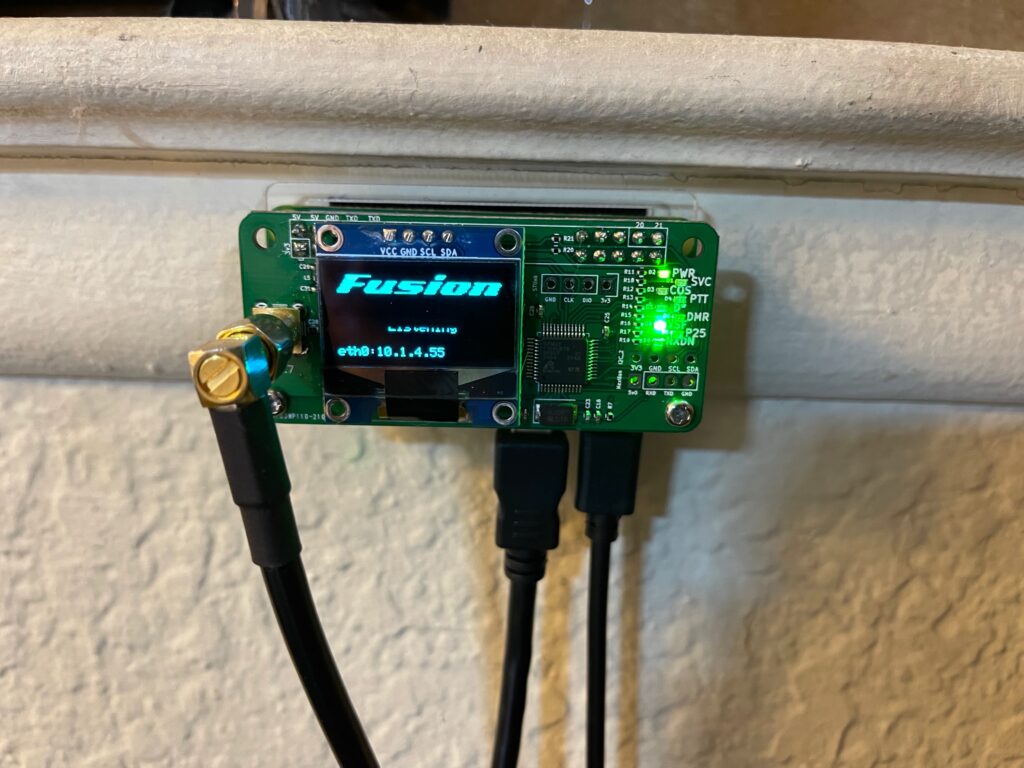
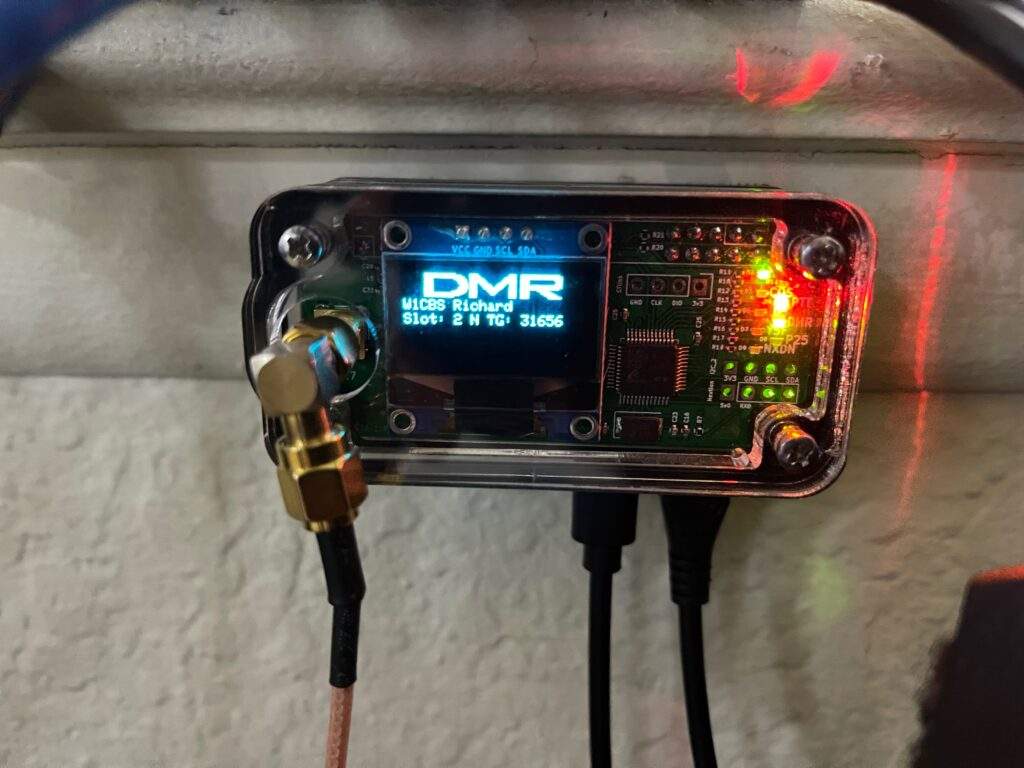
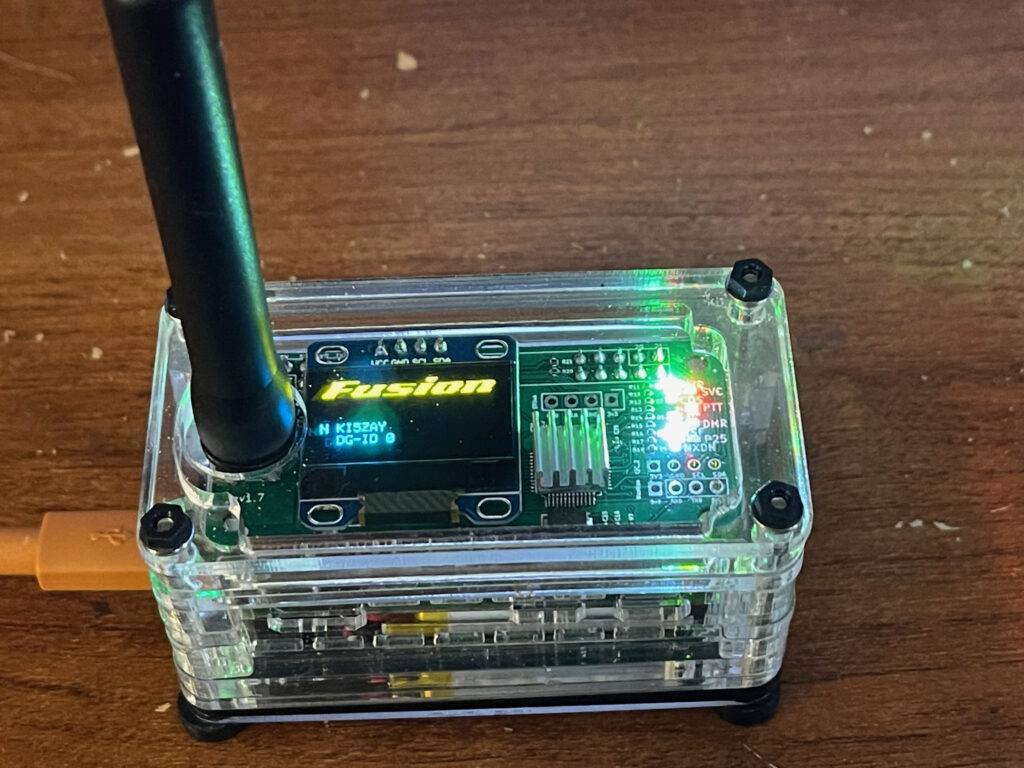
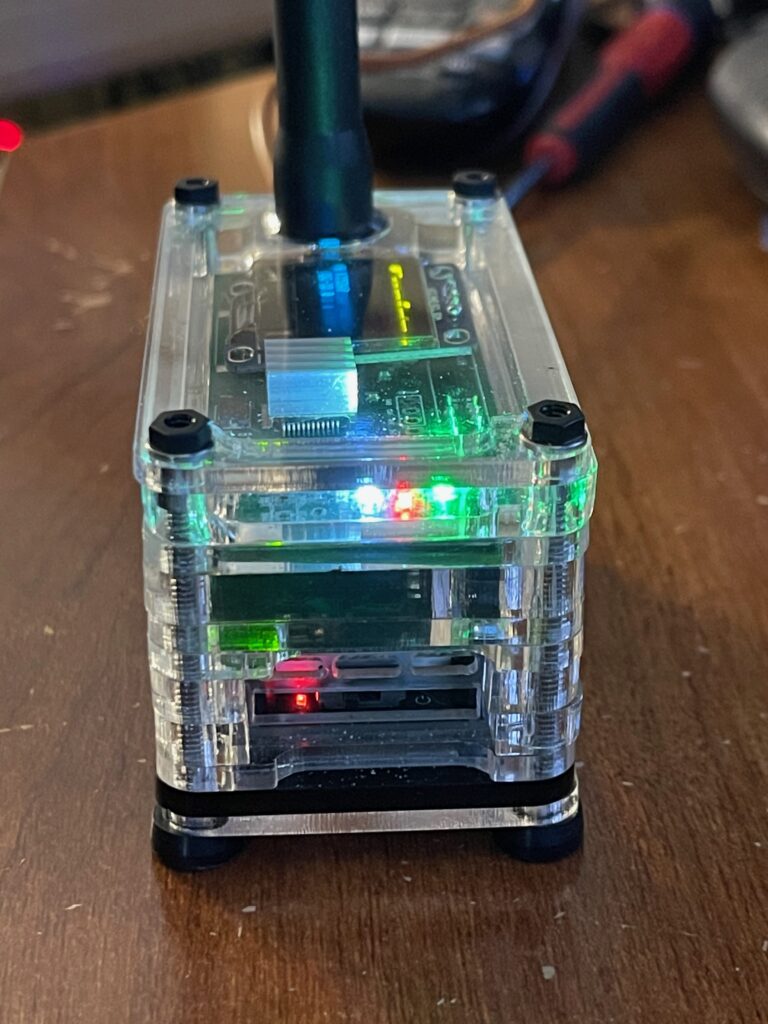
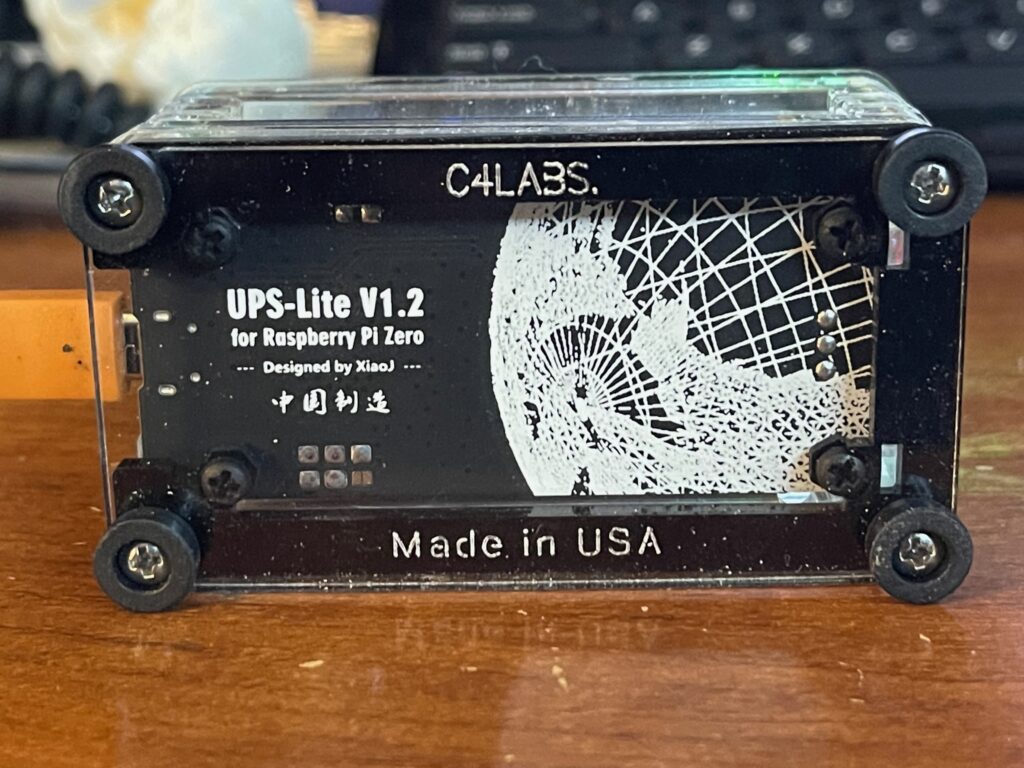
Hotspot Photos



My dashboard isn’t showing any location information. I need a refresher course on using the dashboard!
I will pass this on to kN6RBP, in case he doesn’t already know.
Duane KN6AUV